Firefox has an option that lets you temporarily disable themes and extensions, so you can still use your browser even if one of your add-ons is buggy. It's called
safe mode and it's "a special Firefox execution mode that can be used to troubleshoot issues in Firefox. In Safe Mode, you can reset some settings or disable add-ons that might be the source of the issue. By comparing Firefox behavior in normal mode to its behavior in Safe Mode with various items disabled, you may be able to diagnose issues."
Google Chrome doesn't have this feature, but you can open an incognito window to temporarily disable extensions.
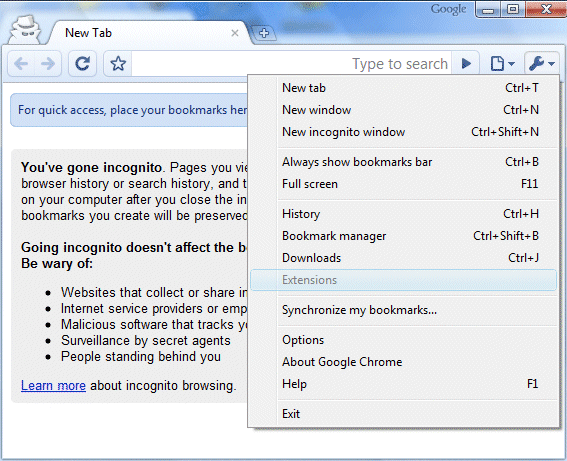
If you want to create a shortcut that opens Chrome in incognito mode, duplicate an existing Chrome shortcut, right-click on the shortcut, select "Properties" and append this flag to the target value:
--incognito (don't forget to add a space to separate the flag).


Correction - Themes are not disabled in Incognito mode.
ReplyDeleteThanks, I edited the post.
ReplyDeleteis there a way to create a incognito shortcut for google chrome on the mac os X? haven't found an easy way up to now! :-(
ReplyDelete@KoS: I have found a link you might find useful: Google Chrome Incognito – Mac OSX Perfect Solution. I haven't tried it, since I'm on Windows :)
ReplyDeleteWith Windows 7 it is very easy. Have a Link in the ShortCut Bar and Right Click it.
ReplyDeleteYou could also try adding "--safe-plugins" -- could add some extra level of variable reducing for trying to track down a problem.
ReplyDeleteWhat's also good about Firefox is that if a script malfunctions, it gives you the option to stop running script and continue browsing instead of just freezing altogether. I haven't encountered that feature in Chrome yet.
ReplyDeleteChris
For the next major release, here are my top 3 requests:
ReplyDelete- Multiple user support. This should allow for multiple users on the same PC (within same user profile) to include separate bookmarks, extensions, settings, etc.
- Password management. It should have a master password for initial log-in as well as site-specific passwords ala Firefox.
- Single Folder Portable Version. Similar to the Portable Apps version where all necessary info/data is stored in a single user-defined folder. This would mostly solve the issue for multiple user support on the same user account as well as making it easily installable almost anywhere like a flash drive, etc.
You can also use the command line flag --disable-extensions. The result is similar to the incognito mode, but has the advantage that you can still use the logins saved in cookies, the history and the ‘New Tab’ page, just like in a normal session.
ReplyDeleteThanks. Very nice for me to know this. :)
ReplyDeleteI want to translate Google Chrome in Uyghur language.
ReplyDeletewhat shou I do?
please help me..
Our Chrome is 4.0.249.89 & In the Rite Click > Chrome Properties, only General, Shortcut, & Compatibility Tabs are appearing & other tabs are not appearing like the above image.
ReplyDeleteI enter the following kewwords in the Chrome Properties > Target Box.
"C:\Program Files\Google\Chrome\Application\chrome.exe --incognito"
I tried all the ways but the error Keep Appearing = (The name "C:\Program Files\Google\Chrome\Application\Chrome.exe --incognito" specified in the Target box is not valid. Make sure the path and file name are correct.)
I also tried & put a space between the -- & incognito but not worked.
Please tell why the error is appearing?
@Rocky:
ReplyDeleteThat's not the proper path for Google Chrome. Chrome doesn't save its files in "c:\program files" so that you don't need admin rights to run the setup or to update the files.
Duplicate an existing Chrome shortcut and edit the target value. You'll definitely find a shortcut on your desktop or in the start menu.
If you can't find an existing shortcut, the proper path to chrome.exe is:
* For Windows XP:
%USERPROFILE%\Local Settings\Application Data\Google\Chrome\Application\chrome.exe
* For Vista / Windows 7:
%USERPROFILE%\AppData\Local\Google\Chrome\Application\chrome.exe
In Our Computer, Chrome is installed in Program Files, so it was the logical path string & I written the same here.
ReplyDeleteIn the Chrome Shortcut's > Target Box, by Default, the undernoted Path String, UpTo Inverted Commas is displaying. What I did only is, appended the (--incognito) keyword at the end.
"C:\Program Files\Google\Chrome\Application\chrome.exe --incognito"
Please tell, what is the mistake in the Path String & how can Chrome in Incognito mode can be start directly.
Make sure you add a space before --incognito. If it still doesn't work, try this:
ReplyDelete"c:\program files\google\chrome\application\chrome.exe" --incognito
Thanks, this is the solution!
ReplyDeleteit doesn't work
ReplyDeleteusing --incognito works but the Canary build still crashed within about 1 second of loading all of a sudden this morning.
ReplyDeleteSo basically there isn't a real safe mode we can use?
A browser can crash even if it's in safe mode. After all, it's just a program and it can have significant bugs. Since you're using the Canary channel, you should know that this is a pre-alpha version, it's not properly tested and it's not ready for a wide audience.
ReplyDeleteThe so-called "safe mode" from this post is just a way to launch Chrome with a clean profile and without loading the extensions. Sometimes corrupted profiles and poorly written extensions crash the browser.
@xxdesmus: You have probably been updated to the version 8. I have the same problem as you, Canary builds keeps crashing immediately after the browser starts. Hopefully there will me a more stable version soon.
ReplyDeletemy friend is using google chrome incognito he has a gmail account within incognito. He has been deleting all emails. About 2 months ago even the long ago deleted emails starting showing up somewhere outside incognito. I have not been able to find out where, me a mac person and him being unclear, he spends ages deleting them again.
ReplyDeleteI have no solution so I have asked him to stop deleting the, just keep them in incognito.
This was not always doing this and yet the emails were from May 2011 onward.
Do you have any advise? Ya I know he should get his own computer and not use wife's computer.
"Incognito" only means that your cookies, passwords, sites you visit aren't saved. You can visit the site nbc.com in incognito mode and that domain won't show up in the history window. That's all there is. It doesn't matter if you delete an email in Chrome's incognito mode, in the normal mode, using Firefox, using Safari on a Mac or an iPhone. As long as you're logged in to the proper account and you're connected to the Internet, the changes are saved online and the message should be deleted (it's actually added to the Trash folder and deleted after 30 days). You haven't mentioned where the deleted emails showed up, but there are a lot of apps that index emails (desktop mail clients, desktop search engines), so that could be an explanation.
Deletesee that is the thing I have not been able to find that out from him. Just in some area where other users can see them and some were 7 month old. So delete, he should 1st delete, and they go into the trash, then he should go into the trash and delete again. Is there a 3rd place he should delete. At work I seem to remember a 3rd pull down from the top to delete. See I am a mac person so only used windows at work and never gmail. I wish I could find out where they are showing up. He just keeps saying popping up everywhere.
ReplyDeleteIf he saves them in incognito mode they should be safe or am I wrong about that.
Incognito mode doesn't save anything. Emails aren't actually saved to your computer if you're loading Gmail in your browser. Now that Gmail uses https by default, they're no longer cached. The main question is: "the messages are still available in the Gmail account?". If they're still available, then he should just delete them again. If they're no longer retrievable in the Gmail account, but some other software displays, then I don't see why there's a problem with Chrome.
ReplyDeleteIncognito mode is just a sandbox. Everything you do in Chrome stays in that sidebox, but when you upload a YouTube video, edit your bank account or send a new email, these actions are still performed. Gmail doesn't know that you're using Chrome in incognito mode.
https://support.google.com/chrome/bin/answer.py?hl=en&answer=95464
so he is going to set up a new gmail account, delete the old one. Always access through google, sign in, untick the box that asks if you want to stay signed in and always sign out.
ReplyDeletequestion if he stays signed in and is in incognito will l the account name show up at the top of the page, I assume it does, so if he was outside incognito and he pulled up a google page, same still signed in would it show there also - same computer.
If you sign in using the incognito, you're not signed in outside incognito. That's an important use of the incognito mode: signing in to two accounts at the same time.
Deletethank you for your help, think we have it worked out.
ReplyDeleteHoping you might be able to help...my Chrome will not open, I get totally ignored.
ReplyDeleteOpening an Incognito window stimulates a pop-up "Unspecified error"...so at least that's a reaction.
If I sign out and go in to my Guest account, same laptop, Chrome works just fine!
What could be blocking it?
Recently AVG Secure Search appeared, Chrome has not worked since I uninstalled that...could that be a possible cause?
Um, this doesn't always work. It is strange that Firefox has this function, and the browser of one of the strongest companies on the planet doesn't.
ReplyDeleteWe are experts in this field with over 10 years experience. What that means is you are going to get right solution.please find our services.
ReplyDeleteResidential & Mortgage Loans
Commecial Loans & Financing
Business Loans & Personal Loans
Investment Solution Experts
Business Growth
We give out loans at 4% interest rate. Duration of 1- 15 years depending on the amount you need as loan. Get back to us for more information:{info@wellsinvestmentsolutions.com}