An unofficial blog that watches Google's attempts to move your operating system online since 2005. Not affiliated with Google.

Send your tips to gostips@gmail.com.

February 19, 2014

Quickly Enable Google SafeSearch

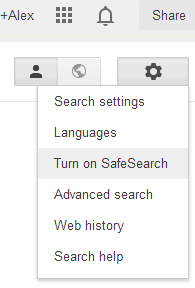
If you want to temporarily turn on Google's SafeSearch, you can do that without opening the settings page. Just click the gear icon and select "turn on SafeSearch". When SafeSearch is enabled, you'll see a message next to gear button: "SafeSearch on". To disable it, click the same button and select "turn off SafeSearch".


"With SafeSearch, you can help prevent adult content from appearing in your search results. No filter is 100 percent accurate, but SafeSearch should help you avoid most of this type of material," explains Google.

If you're logged in, search settings are saved to your account and used for all devices. You can also go to the settings page and enable "Filter explicit results"

Enable Data Compression Proxy in Chrome for Desktop

Chrome's data compression proxy is only available for Android and iOS, but Jerzy Głowacki figured out a way to bring this feature to the desktop. Just install this extension and it enables the proxy. You can check the savings by visiting chrome://net-internals/#bandwidth and disable it by clicking the button from the toolbar.


"The extension sends all HTTP (but not HTTPS) traffic through Chrome Data Compression Proxy server, which uses SPDY protocol to speed up web browsing. Enabled state is indicated by a green icon. You can manually disable the proxy by clicking on the icon."

I've checked the code and it looks OK. It's also available here. Please note that this extension is not developed by Google, it's experimental and might not work properly for all sites.

{ Thanks, Jerzy. }

Search by Size in Gmail

Now you no longer need to remember search operators to filter Gmail results by size. Gmail's advanced search added a new option that lets you restrict results to messages larger or smaller than the specified size. Just click the arrow from the search box, pick "greater than" or "less than", enter the size, choose from "MB", "KB" or "Bytes" and click the search button. You can also add other filters.

"Ever wanted to find that wedding video your uncle shared as an attachment, or see which messages take up the most space in your mailbox? You can now search your emails by size in advanced search without having to memorize search operators like size: and larger:," informs Google.

February 14, 2014

Google+ Easter Egg for Valentine's Day

Google+ has a special Easter Egg for Valentine's Day. Mr. Jingles, the Google+ mascot, transformed into a heart. You can find the animation in the Google+ notification box: in Google+ for desktop, Google+ mobile apps and most Google services.


Here's the animation that's displayed when you click the icon. This is the "retina" double-sized version:


"I <3 you, people of Google+! You've made me feel like your Valentine many times over," says Mr. Jingles.

You can also check the costumes for New Year's party, Christmas, Thanksgiving Day, Halloween, 15 years of Google and 2 years of Google+.

February 13, 2014

Google's Timer is Back

Remember the timer feature that was available for a few days last year and then quickly removed by Google? It's back now: it only works in the desktop Google search interface and it now has a full screen option. Right now, it seems to be an experimental feature.

Here are some examples of searches you can use: [set timer for 30 seconds], [set timer for 10 minutes and 10 seconds], [set timer for an hour and a half], [timer for 30 seconds], [timer 30 seconds], [timer 30 sec], [timer 23 hours 59 min 59 sec]. If you search for [set timer] or [timer], Google defaults to 5 minutes.


There's also a fullscreen mode:


Here's a video:


{ Thanks, Jonah. }

Definite Articles in Google Translate

This is pretty useful. When you translate a noun, Google Translate now shows the proper definite article. For example, when you translate "person" into Portuguese, Google displays multiple translations: "a pessoa", "o homem", "a mulher" and more. Google actually translates "the person".


When there are too many translations, Google collapses the list.


{ Thanks, Camilo. }

My Location in the New Google Maps

The new Google Maps for desktop brings back the "show my location" feature. Just click the button next to zoom in/out and Google Maps will show your location. You'll probably see a dialog that asks for your permission to send your location to Google.

"If you're unable to activate My Location, you may have previously denied permission for Google Maps to use your location. Or, your browser may have experienced an error in determining your location. To have My Location work, you must first grant permission then let Maps get your location," informs Google.


Google Maps URLs include more information: the name of a place, latitude, longitude.


In other related news, the new Google Maps will replace the classic Google Maps in the near future. Here's a message displayed by Google: "Search, navigate, and explore with the new Google Maps, coming to your desktop soon."


{ Thanks, Jérôme. }

February 8, 2014

Google Search Debug Info

Sometimes Google's files reveal internal information. Here's some debug info for Google Search: it looks like many search features are actually server-side plugins and Google measures the time taken to load them. There are plugins for social posts, knowledge panels, rich snippets, product ads, forum clusters, Gmail results, health results, hacked sites, hashtags, empty results, science links, Korea features and more. The debug information is provided by a Java plugin (JvmInfoPlugin).

Click the image to see a bigger version.


{ Thanks, Florian K. }

YouTube Tests New Mobile Site UI

YouTube tests a new interface of the mobile site. It's closer to the mobile app UI, it shows the description and the number of likes and dislikes, a red "subscribe" button and action buttons are placed below the video.


There are other changes: the new YouTube logo, the "hamburger" menu, bigger thumbnails, new font, gray background.


{ Thanks, Nedas. }

February 1, 2014

More System Gmail Labels

Back in 2007, I posted a list of shortcuts for system Gmail labels. For example, instead of searching for [issue in:inbox], you can use [issue label:^i.] or [issue l:^i]. Instead of searching for [receipt in:spam] or [receipt label:spam], you can use [receipt l:^s].

Mihai Parparita found other system labels and some of them don't have documented alternatives:

^g: muted conversations (just like is:muted or label:muted or label:mute)
^p: messages marked as phishing
^op: messages automatically marked as phishing by Gmail
^os: messages automatically marked as spam by Gmail
^vm: Google Voice voicemail messages (just like is:voicemail or label:voicemail)
^io_im: important messages (just like is:important)
^unsub: messages that include unsubscribing options. Gmail offers to unsubscribe on your behalf
^cff: messages from your Google+ circles (just like has:circle)
^p_esnotif: Google+ notifications

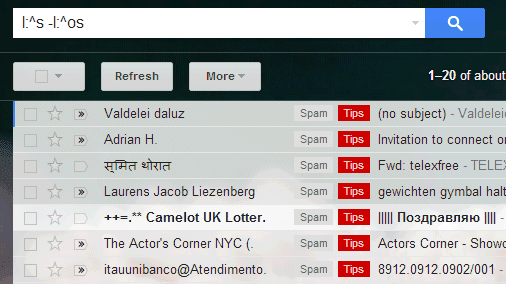
For example, you can find messages you've marked as spam by searching for [l:^s -l:^os] or [label:spam -l:^os]. From all the spam messages you exclude the messages automatically marked as spam by Gmail.


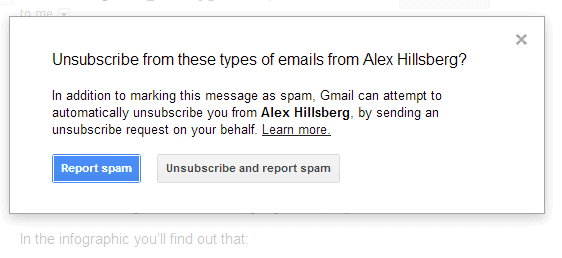
You can also restrict Gmail results to Google+ notifications: [Christmas l:^p_esnotif]. If you search for [l:^unsub] and mark a message as spam, Gmail will show this dialog and unsubscribe on your behalf if you click "unsubscribe and report spam". Use [l:^unsub -l:^p_esnotif] to exclude Google+ notifications.